by Oskar Norberg
Standards in 3D engines are often very loose; differences between coordinate systems, shading, scaling, and even animation systems can turn what is an otherwise intuitive, highly iterative workflow into a slow, inefficient slog. This article compares ways of streamlining this workflow through implementing an animation editor inside of the Evergreen Game Engine.
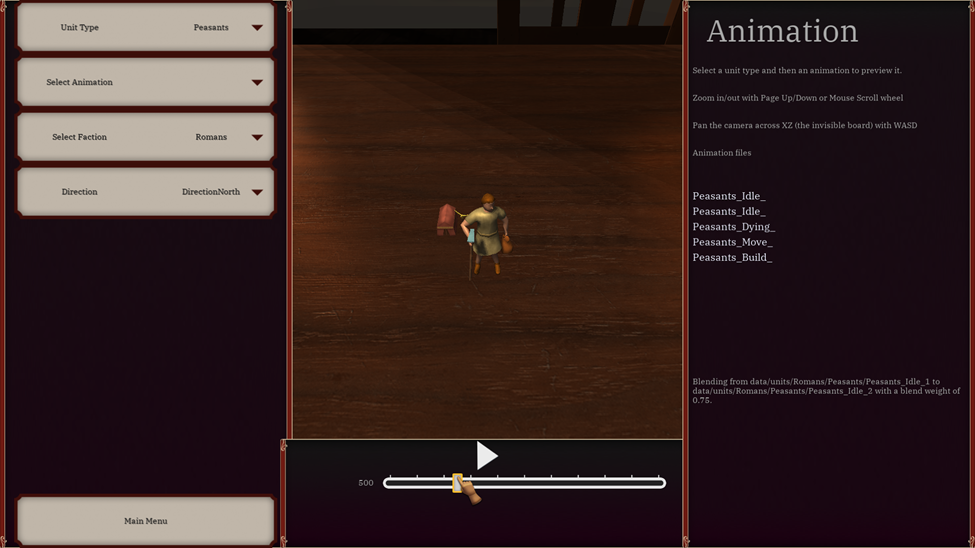
Figure 1: Screenshot of the Animation Editor showing the peasant unit type standing idle.
Background
As Iterum is developed in the proprietary Evergreen Game Engine, a custom workflow is required for artists and animators to preview their work in-engine. The current animation system works by exporting multiple animation frames and interpolating between their two sets of vertices. To quality-check assets, animators need to be able to view their assets not only in their modeling/animation software but also observe how they behave in-engine.
Previously, this was done by simply placing the units in the in-game map editor and manually triggering their animations. This workflow meant animators needed to load into the map editor, place their units on an elevated surface and then finally play their animations. To streamline this workflow multiple options can be employed such as building a separate executable for animation testing or integrating it into the map editor.
However, these options were not without their problems as managing a separate AssetViewer executable would create a managerial burden by having to maintain what is essentially a completely new project. Likewise integrating animation testing to the Map Editor had similar drawbacks with maintainability and adding bloat to an already quite large source-file.
Ultimately, we landed on creating the Animation Editor as a separate tool within the game itself. This removed the need to maintain a separate project, but only a tool within Iterum. Furthermore, this approach also lends itself well to not bloating up the Map Editor, keeping it free from any animation-specific functionality.
Changes to the Animation System
The Animation System (more thoroughly detailed in ’Implementing Blend Shapes in Iterum’) works using blend shapes rather than full skeletal animation. This means animation frames are exported as separate models and then interpolated between using a blend weight. To build the animation timeline and show blend times along with play and pause functionality hooks must be implemented to access data relevant animation data for display in the GUI.
GUI System
The Evergreen Game Engine uses its own custom, declarative UI language. Its language combines styling and domain into a single .gui file that describes alignment, sizing, and styling of UI elements. The high-level syntax works by declaring which element the new element is a child of; then declaring the type of element along with any properties in the form of key value pairs. Thus, a basic window would be created by first declaring the root element, specifying its size parameters, and then directly adding elements as children or adding a container to the root.
In addition to the core GUI language, reusable components can also be created using the FromFile syntax. This lets a developer create reusable GUI templates with the possibility to override their contents from the source code.
root
name AnimationEditor

parent AnimationEditor

List lLeftSide
sizeRatioXY 0.3 1
alignmentXY 0.15 0.5
9slice $Main9Slice

List lMiddleBottom
sizeRatioXY 0.425 0.2
alignmentXY 0.5 0.1
9slice $Main9Slice

List lRightSide
sizeRatioXY 0.3 1
alignmentXY 0.85 0.5
9slice $Main9Slice
margin 16

parent lLeftSide
FromFile AnimationEditor/LeftSide.gui
Figure 2: The Main windowing layout of the animation editor.
Message System
For the synchronization and communication between different threads, the engine makes heavy use of messages. These messages are polymorphically stored in a thread-safe queue where any number of publishers can send a message, but only the receiving thread can consume messages. Through these messages, events such as mouse-clicks, GUI interactions, and keyboard/gameplay interactions are captured and conveyed to different systems.
To identify messages, each message stores a unique identifier in the form of an enum-entry, which contains all possible types of messages. To act upon these messages, they are passed to each system’s ProcessMessage function, passing the message pointer as a parameter.
Previously, the switching based on message types was done in the ProcessMessage itself; this however led to bloat from excessive boilerplate due to functions processing many different types of messages. To reduce the amount of boilerplate needed to act upon the messages, the MessageDirector helper-utility for dispatching based on message type was created. This allows the Message processing function to easily be divided into different sub-functions based on the message type through a simple series of calls.
bool ProcessMessage(Message* message) {
    bool handled = true;
    switch (message->type) {
    case MessageType::MouseMessage: {
        MouseMessage* mm = dynamic_cast<MouseMessage*>(message);
        // ...
        break;
    }
    case MessageType::SetString:
    {
        const SetStringMessage* setStringMessage = dynamic_cast<SetStringMessage*>(message);
        // ...
        break;
    }
    case MessageType::String: {
        const String& msg = message->msg;
        // ...
        break;
    }
        case MessageType::IntegerMessage: {
        const IntegerMessage* integerMessage = dynamic_cast<IntegerMessage*>(message);
        // ...
        break;
    }
    default:
        break;
    }

    return handled;
}
Figure 3: Animation Editor pre MessageDirector.
bool ProcessMessage(Message* message) {
    MessageDirector director(message);
    director.ProcessMessage<MouseMessage>(MessageType::MouseMessage, ProcessMouseMessage);
    director.ProcessMessage<SetStringMessage>(MessageType::SetString, ProcessSetStringMessage);
    director.ProcessMessage<Message>(MessageType::String, ProcessStringMessage);
    director.ProcessMessage<IntegerMessage>(MessageType::IntegerMessage, ProcessIntegerMessage);

    return director.GetHandled();
}
Figure 4: Animation Editor post MessageDirector.
This greatly simplifies message handling by not only streamlining the type-switching, but also abstracts the typecasting, making it a responsibility of the MessageDirector rather than the processing function. This makes the individually typed processing methods more concise and focused on performing their function and nothing outside it.
UI Messages
Through the usage of the MessageDirector switching based on message types becomes much less boilerplate heavy. Different UI elements yield different message types. For example, scrubbing the timeline creates an IntegerMessage, buttons create StringMessage and selecting an index in a dropdown creates a StringMessage with the element name as value.
To differentiate between different UI elements, each message is paired with a string containing the ID of the publishing element. This is used to identify which element was activated. However, this poses a potential performance problem.
Comparing strings is an O(n) operation, meaning each character is individually checked against the target string for equality. This is a relatively small operation, especially on shorter strings, but when done at scale in the hot loop it can lead to serious performance bottlenecks. To circumvent this, an approach such as hashing the strings in advance can be applied.
By hashing the messages to compare against at compile-time, the expensive string comparison can be circumvented and replaced with a simple hash operation along with cheap integer comparisons. Through testing this has yielded an up to 26x speedup in execution time.
namespace Messages {
    constexpr const size_t PLAY_BUTTON_PRESSED = HashString("PausePlayButton");
    constexpr const size_t TIMELINE_SLIDER_MESSAGE = HashString("SetTimelineSlider");
    constexpr const size_t SELECT_UNIT_TYPE = HashString("DropDownMenuSelection:SelectUnitType");
    constexpr const size_t SELECT_ANIMATION = HashString("DropDownMenuSelection:SelectAnimation");
}
Figure 5: Example of the compile-time hashed strings.
This approach does suffer from one drawback of hashing however, which is the pigeonhole problem. Because a dynamically sized string is truncated into a 64-bit wide value, there’s potential for hash collisions. This creates the possibility of false positives where two strings are hashed into the same value despite containing completely different sequences. However, by selecting an algorithm with a low collision rate such as the FNV-1a algorithm, this proved to be of such low chance the performance benefits by far outweighed the potential for a collision.
Tying it all together
By making use of the GUI System, Message System, and String Hashing, the Animation Editor can respond to user interaction. Through interacting with the GUI the user can select a unit type to preview, select an animation, select faction, play/pause, scrub the timeline, and unit facing direction. By responding to the UI interaction systems, the Animation Editor creates a unit of the user-specified type and plays its animation. Furthermore, animation information such as blend-weights and which frames are being interpolated between are displayed in the right-hand panel.
Figure 6: Video showcasing scrubbing the timeline to alter animation playback.
Conclusion
Summarily, by creating a system for artists to quickly preview their units, iteration time can greatly be improved. Furthermore, through iterating and improving existing engine-level infrastructure, modern C++ practices can be applied along with performance optimizations to ensure smooth operation for end-users.